Video ResizerResize videos to any resolution or dimension in your browser.

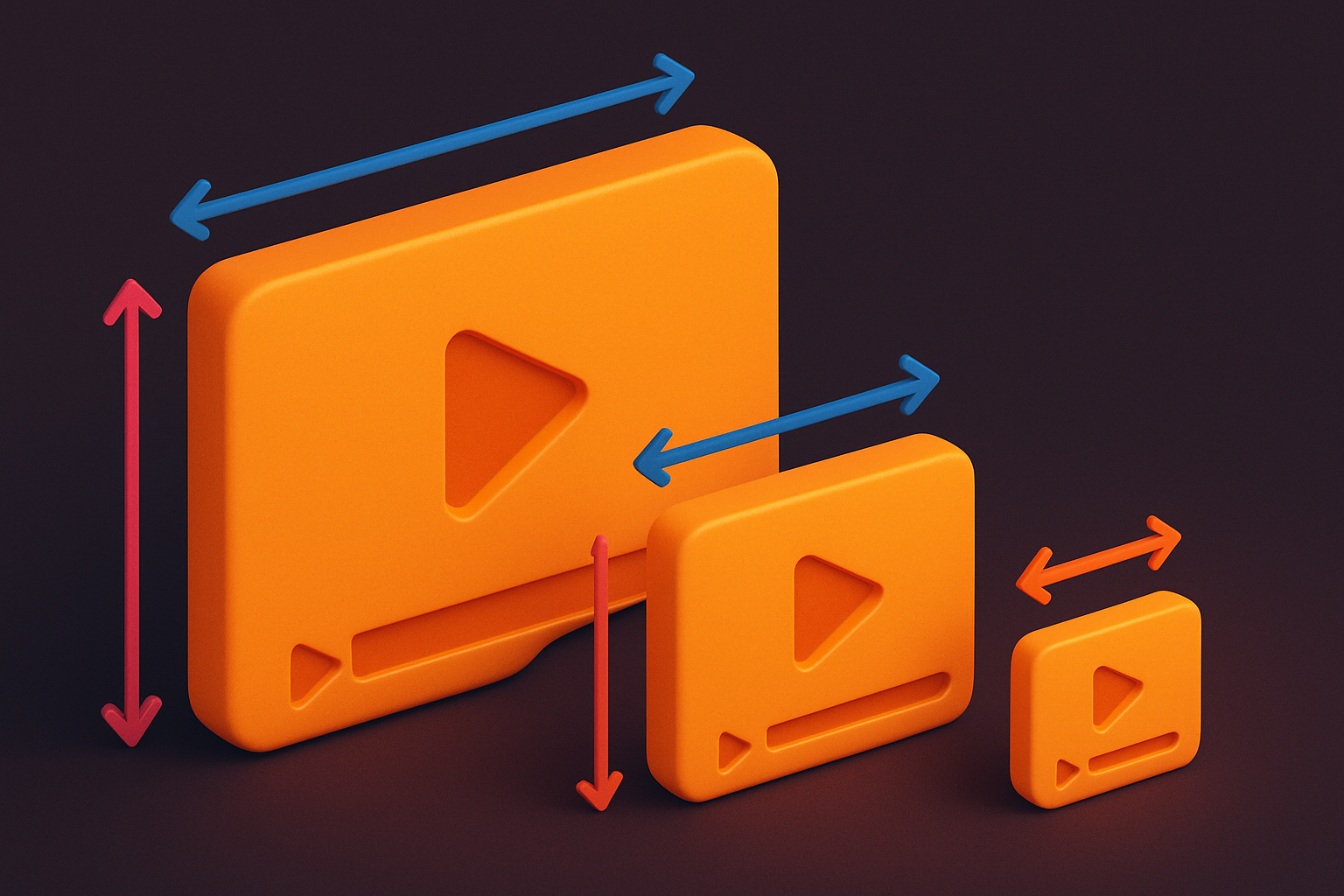
Video Resizer
Resize videos to any resolution or dimension in your browser.
Upload Video
Drag and drop your video file or click to browse.
Set Size
Choose a preset resolution or enter custom dimensions.
Resize & Download
Click Resize and download your resized video.
What Is Video Resizer?
The Video Resizer is a free browser-based tool that changes video dimensions to any resolution you need. Scale videos down for faster uploads, resize for specific platform requirements, or reduce resolution to decrease file size. Choose from preset resolutions (1080p, 720p, 480p, 360p) or enter custom dimensions with optional aspect ratio lock. The tool uses Canvas for resolution scaling and MediaRecorder for output encoding. All processing happens locally in your browser — your videos never leave your device.
Why Use Our Video Resizer?
- Preset resolutions and custom dimensions supported
- Maintain aspect ratio or freely stretch/squish
- Reduce file size by lowering resolution
- No uploads — processing stays on your device
Common Use Cases
File Size Reduction
Reduce video resolution to significantly decrease file size for sharing.
Platform Requirements
Resize videos to meet specific platform dimension requirements.
Thumbnail Creation
Scale videos to small dimensions for preview thumbnails.
Consistent Output
Standardize video resolutions across a collection of clips.
Technical Guide
The Video Resizer loads the video via an HTML5 Video element and creates a Canvas at the target dimensions. During processing, each video frame is drawn onto the canvas using drawImage() which handles the scaling. The canvas uses the browser's built-in image scaling algorithm for quality. For downscaling, the canvas produces smooth results; for upscaling, quality depends on the scaling factor. The canvas stream and audio (captured via Web Audio API) are combined and fed to MediaRecorder. Aspect ratio maintenance is calculated by fitting the video within the target dimensions while preserving proportions, optionally adding letterboxing. The tool supports both constrained (aspect ratio locked) and free (independent width/height) resizing modes.
Tips & Best Practices
- 1Downscaling produces better results than upscaling
- 2Lock aspect ratio to prevent video distortion
- 3Lower resolutions significantly reduce file size
- 4Use 720p for a good balance between quality and file size
Related Tools


Video Cropper
Crop videos to remove unwanted areas and change aspect ratios.
 Video Tools

Video Compressor
Compress video files to reduce file size while maintaining quality.
Video Tools
Video Trimmer
Trim and cut video clips to the exact length you need in your browser.
Video Tools
Video Rotator
Rotate videos by 90, 180, or 270 degrees in your browser.
Video Tools
MP4 to WebM Converter
Convert MP4 video files to WebM format directly in your browser.
Video Tools
WebM to MP4 Converter
Convert WebM video files to MP4 format directly in your browser.
Video ToolsFrequently Asked Questions
QDoes resizing reduce quality?
QWhat resolutions are available?
QIs it private?
QCan I upscale a video?
QDoes it preserve audio?
About Video Resizer
Video Resizer is a free online tool from FreeToolkit.ai. All processing happens directly in your browser — your data never leaves your device. No registration required. No ads. Just fast, reliable tools.