
CSS Keyframe GeneratorBuild custom CSS @keyframes animations step by step with a visual editor.
CSS Keyframe Generator
Build custom CSS @keyframes animations step by step with a visual editor.
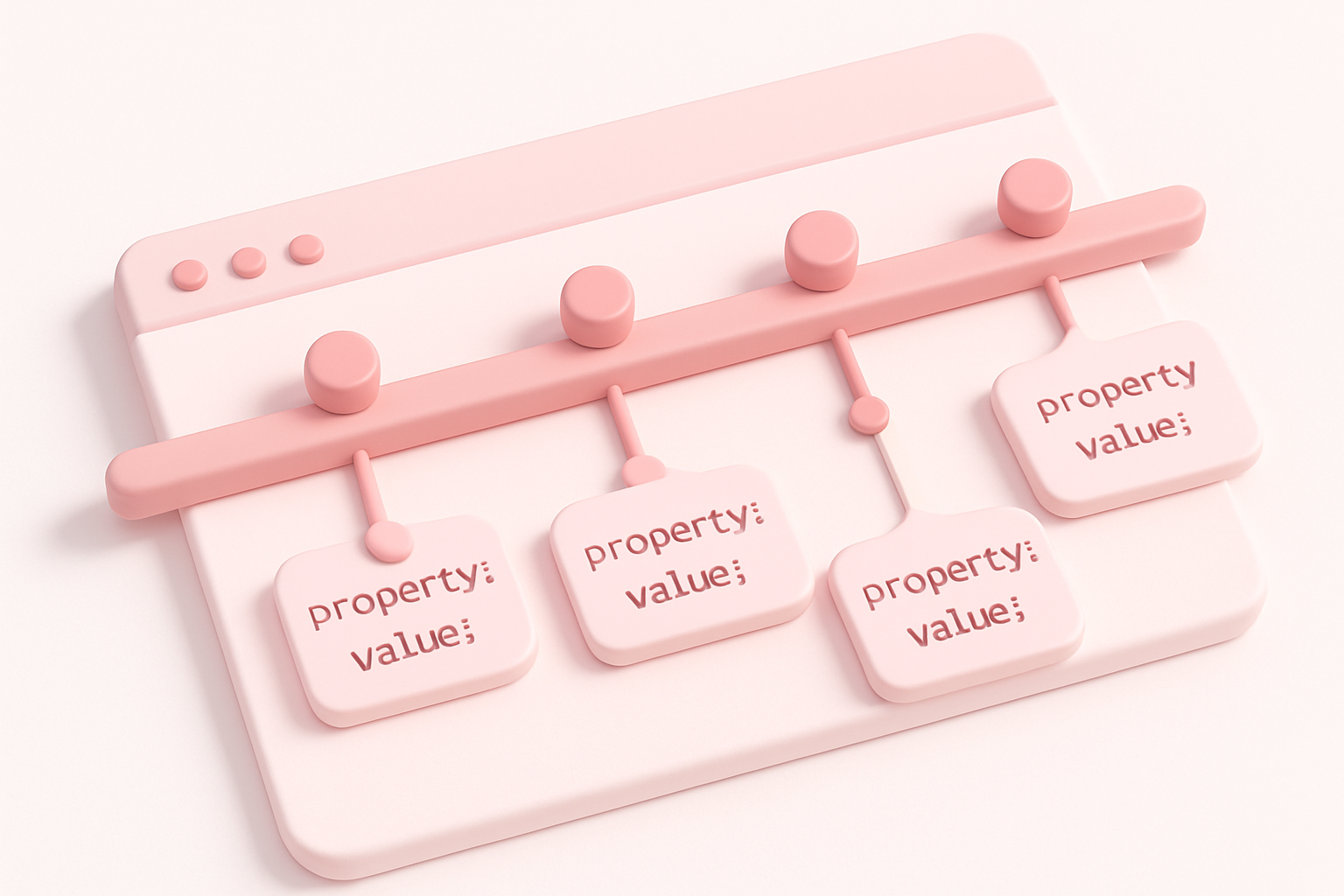
Define keyframe steps
Add percentage-based steps and write CSS properties for each stage.
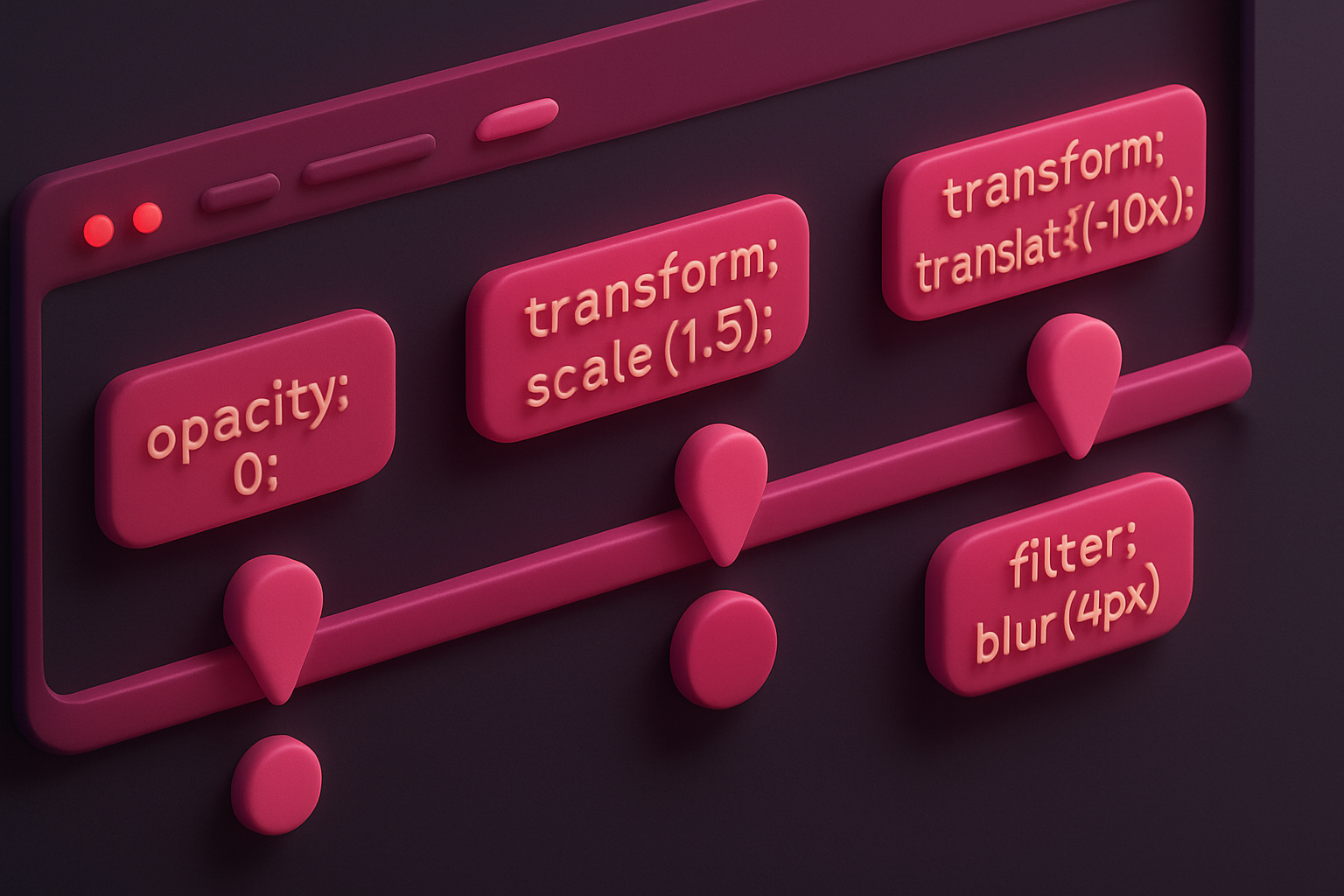
Customize timing
Set the animation name, duration, and timing function.
Copy the code
Preview the animation and copy the complete @keyframes and animation CSS.
What Is CSS Keyframe Generator?
The CSS Keyframe Generator is a step-by-step editor for building custom @keyframes animations. Unlike preset animation tools, this generator gives you full control over every animation stage. You can add any number of keyframe steps at specific percentages, write custom CSS properties for each step, and see the animation play in real-time. Each step has a percentage field (0% to 100%) and a CSS properties textarea where you can write any valid CSS declarations. Steps are automatically sorted by percentage. The tool generates complete @keyframes rules with proper formatting, along with the animation property declaration. This is ideal for creating unique, custom animations that go beyond standard presets.
Why Use Our CSS Keyframe Generator?
- Full control over every keyframe stage and CSS property
- Add unlimited keyframe steps at any percentage
- Steps automatically sorted and formatted properly
- Live preview shows the animation as you build it
Common Use Cases
Custom Entrance Effects
Design unique entrance animations with precise stage control.
Complex Motion Paths
Build multi-stage animations with different transforms at each step.
Loading Animations
Create custom loading indicators with exact timing control.
Brand Animations
Design signature brand animations with precise keyframe control.
Technical Guide
CSS @keyframes define animation stages using percentage selectors or from/to keywords. Each percentage block contains CSS properties that define the element state at that point in the animation timeline. The browser interpolates values between keyframes for smooth transitions. Not all properties can be interpolated—discrete properties like display switch instantly at the keyframe percentage. Common animatable properties include transform, opacity, color, background-color, width, height, and margin. For smooth animations, use transform for positioning (translate) rather than top/left, and opacity for visibility rather than display. The animation shorthand property references the @keyframes name and specifies timing parameters. Multiple animations can be applied to one element using comma-separated values.
Tips & Best Practices
- 1Use 0% and 100% keyframes to define the start and end states explicitly
- 2Add steps at irregular percentages for natural, organic motion
- 3Animate transform and opacity for the best performance
- 4Test with different timing functions to find the best feel
Related Tools

CSS Animation Generator
Create CSS keyframe animations with preset effects and customizable timing.
 CSS & Design

CSS Transition Generator
Generate CSS transitions with customizable property, duration, easing, and hover effects.
CSS & Design
CSS Transform Playground
Experiment with CSS transforms including rotate, scale, skew, and translate with 3D perspective.
CSS & Design
CSS Spinner Generator
Generate CSS loading spinners and animated loaders with customizable styles.
CSS & Design
CSS Gradient Generator
Create beautiful linear, radial, and conic CSS gradients with multiple color stops and angle control.
CSS & Design

CSS Box Shadow Generator
Generate CSS box shadows with multiple layers, inset options, and real-time preview.
CSS & DesignFrequently Asked Questions
QHow many keyframe steps can I add?
QCan I write any CSS in keyframe steps?
QWhat happens between keyframe steps?
QDo I need both 0% and 100%?
QCan I reuse keyframes for multiple elements?
About CSS Keyframe Generator
CSS Keyframe Generator is a free online tool from FreeToolkit.ai. All processing happens directly in your browser — your data never leaves your device. No registration required. No ads. Just fast, reliable tools.