Image Channel SplitterSplit an image into separate Red, Green, Blue, and Alpha channel images.
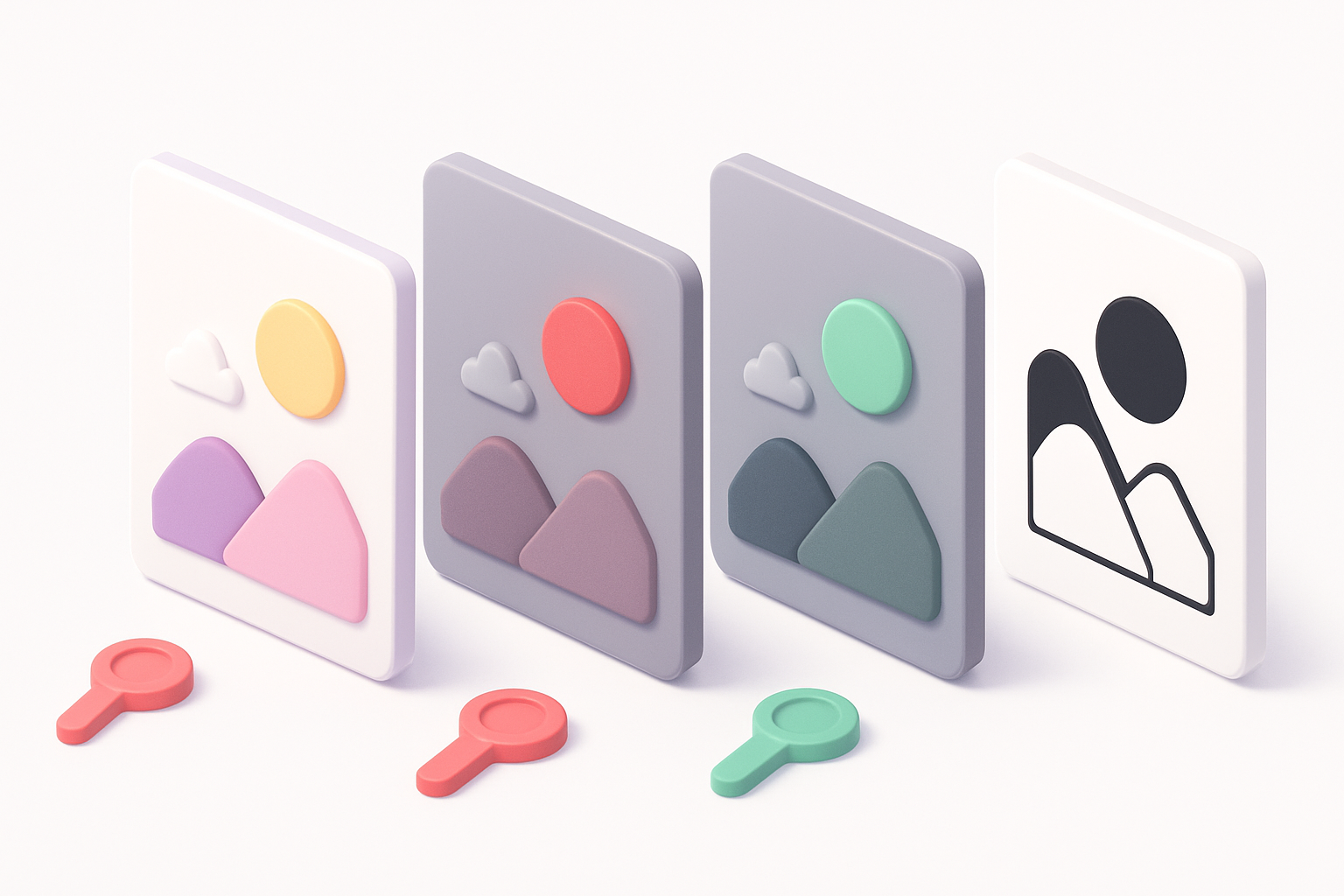
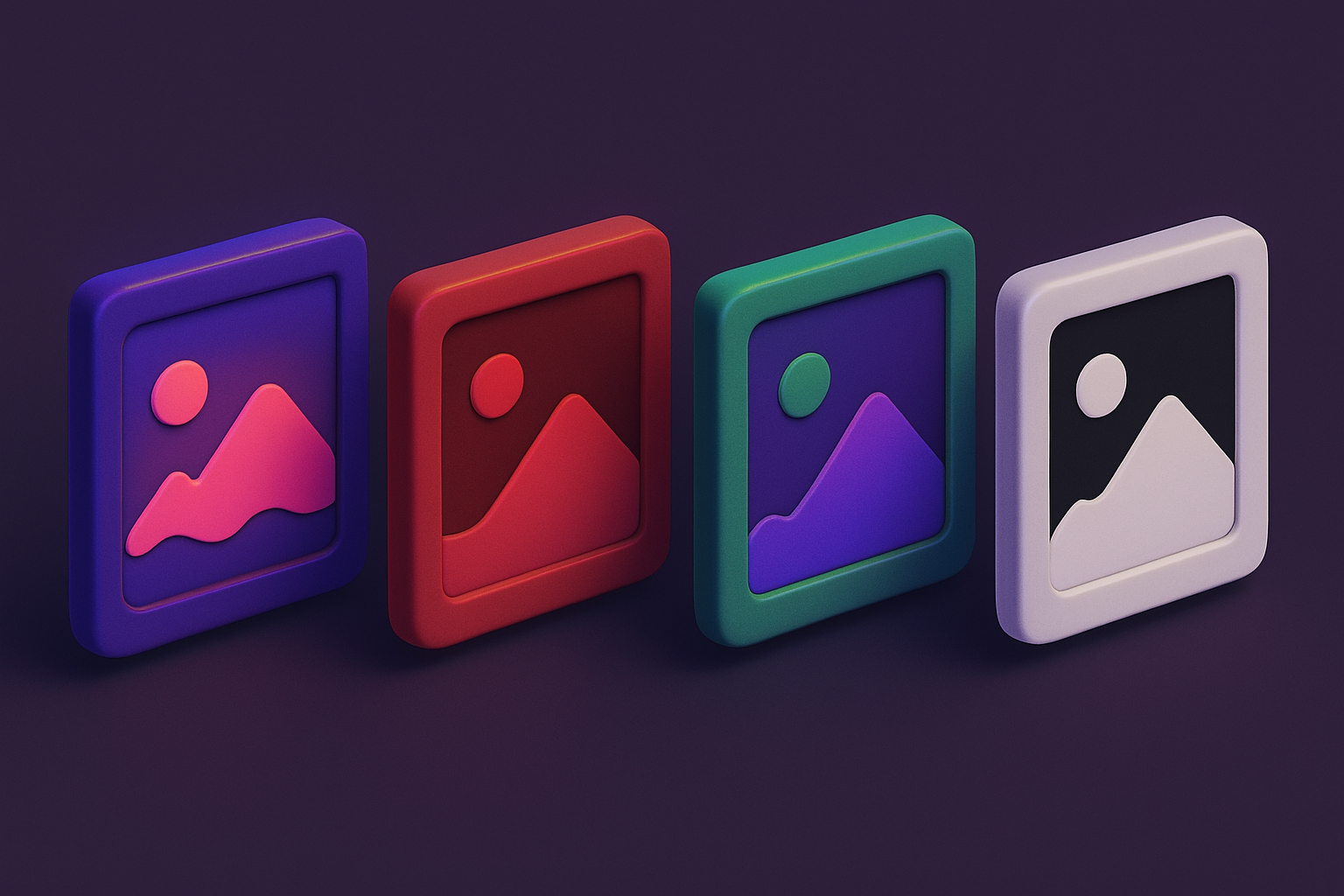
Image Channel Splitter
Split an image into separate Red, Green, Blue, and Alpha channel images.
Upload Image
Drop or select an image to split into channels.
Split
Click to separate the image into Red, Green, Blue, and Alpha channels.
Download
View each channel and download individually.
What Is Image Channel Splitter?
An image channel splitter that separates an image into its Red, Green, Blue, and Alpha components. Each channel is rendered as a separate image showing only that color component. Red channel shows red intensity, green shows green, blue shows blue. Alpha channel shows transparency as a grayscale map. Essential for image analysis, compositing workflows, and understanding color composition.
Why Use Our Image Channel Splitter?
- Separates all four channels: R, G, B, Alpha
- Color-tinted channel visualization
- Individual download for each channel
- Alpha channel shown as grayscale intensity map
Common Use Cases
Image Analysis
Examine color distribution across individual channels.
Compositing
Extract channels for advanced compositing workflows.
Education
Understand how RGB color channels combine to form images.
Game Development
Split texture maps that pack data in separate channels.
Technical Guide
Image data is extracted via getImageData. For each channel (R=0, G=1, B=2), a new ImageData is created where only that channel retains its value while others are set to 0. Alpha channel creates a grayscale image where each pixel's RGB values equal the alpha value. Each channel image is rendered on canvas and exported as PNG. The colorized view shows channels in their respective colors.
Tips & Best Practices
- 1Compare channels to see which carries the most contrast
- 2Alpha channel appears white for opaque areas, black for transparent
- 3Use with Channel Merger to recombine after editing
- 4Great for understanding JPEG vs PNG color characteristics
Related Tools
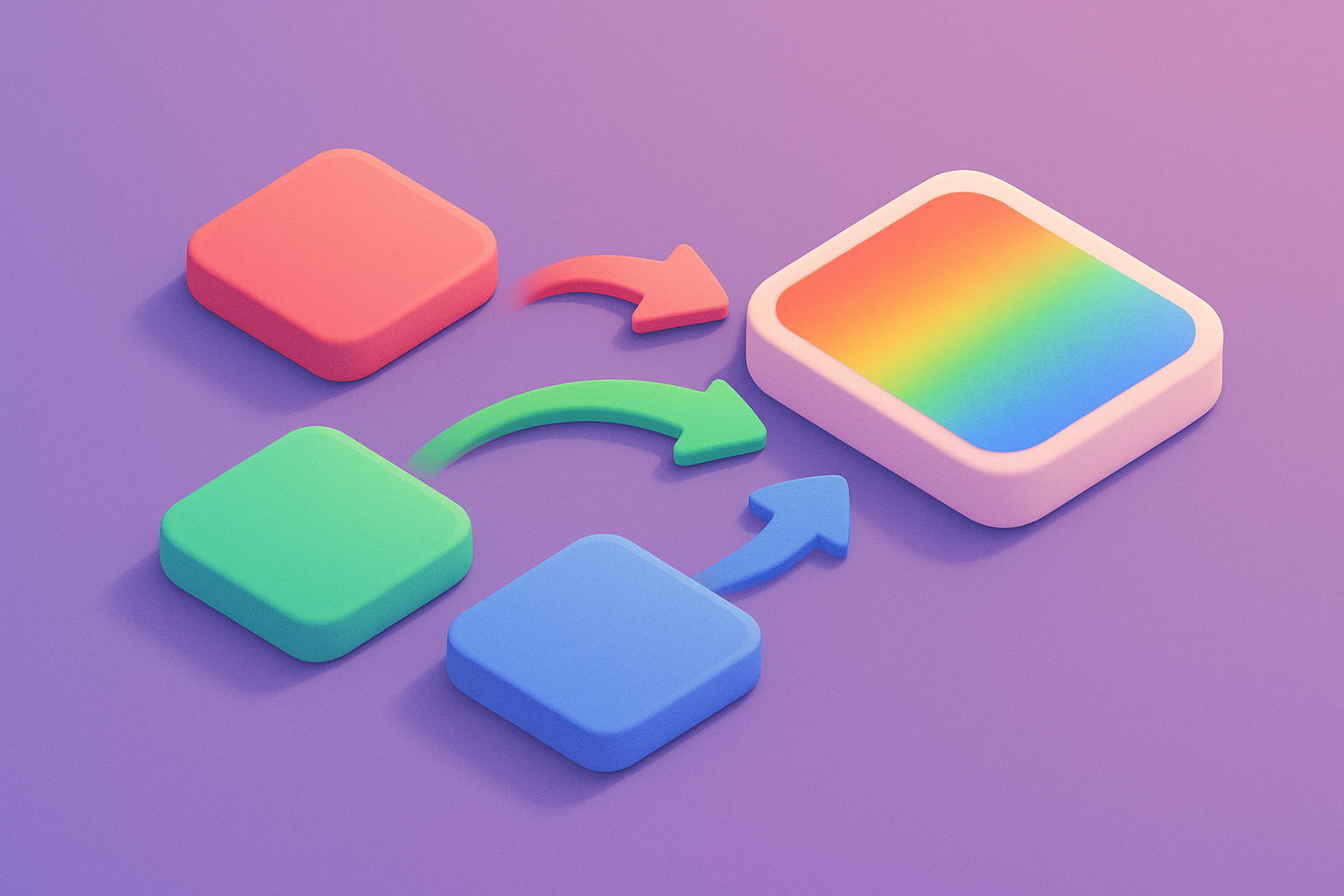
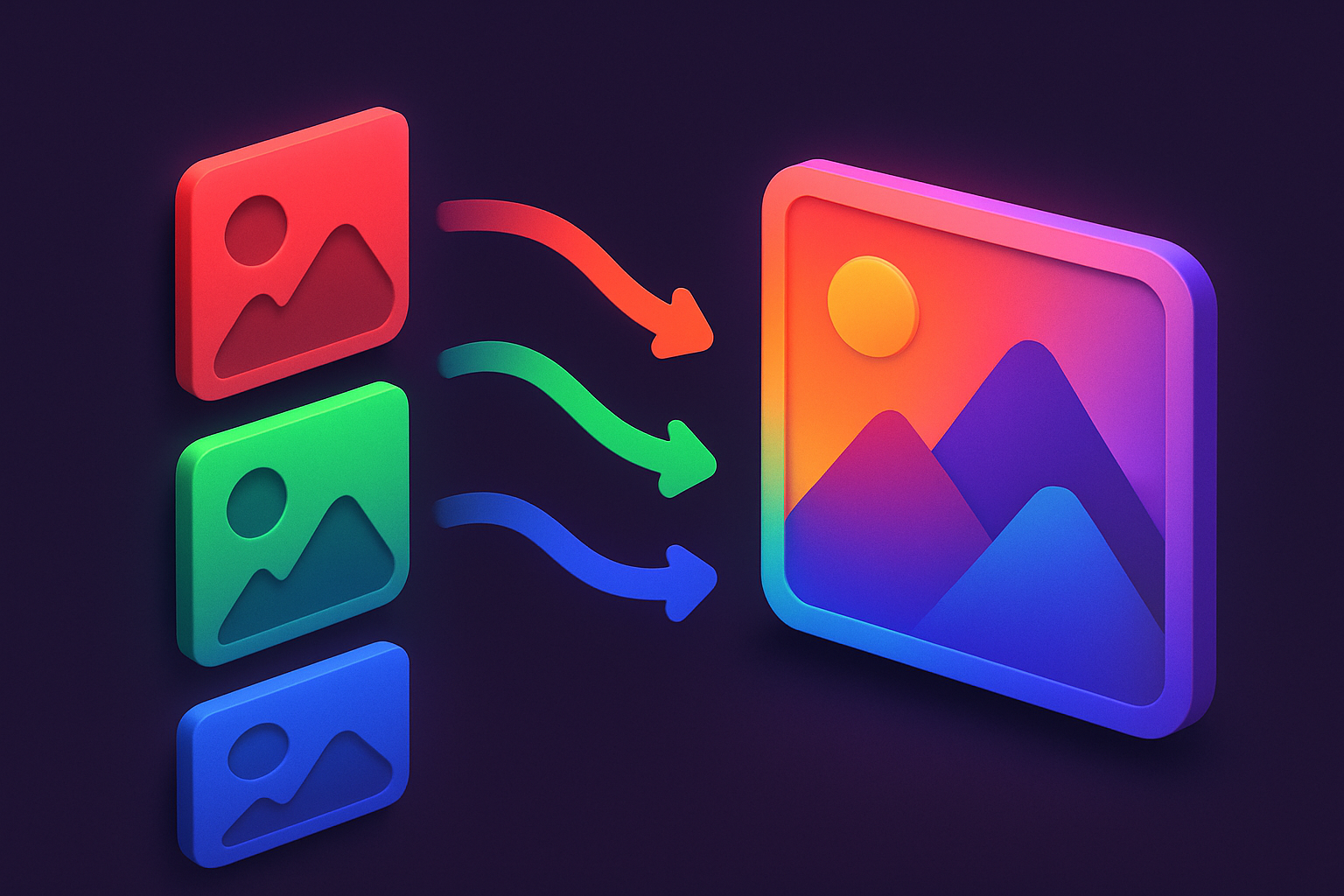
Image Channel Merger
Merge separate Red, Green, and Blue channel images into a single combined image.
 Image Tools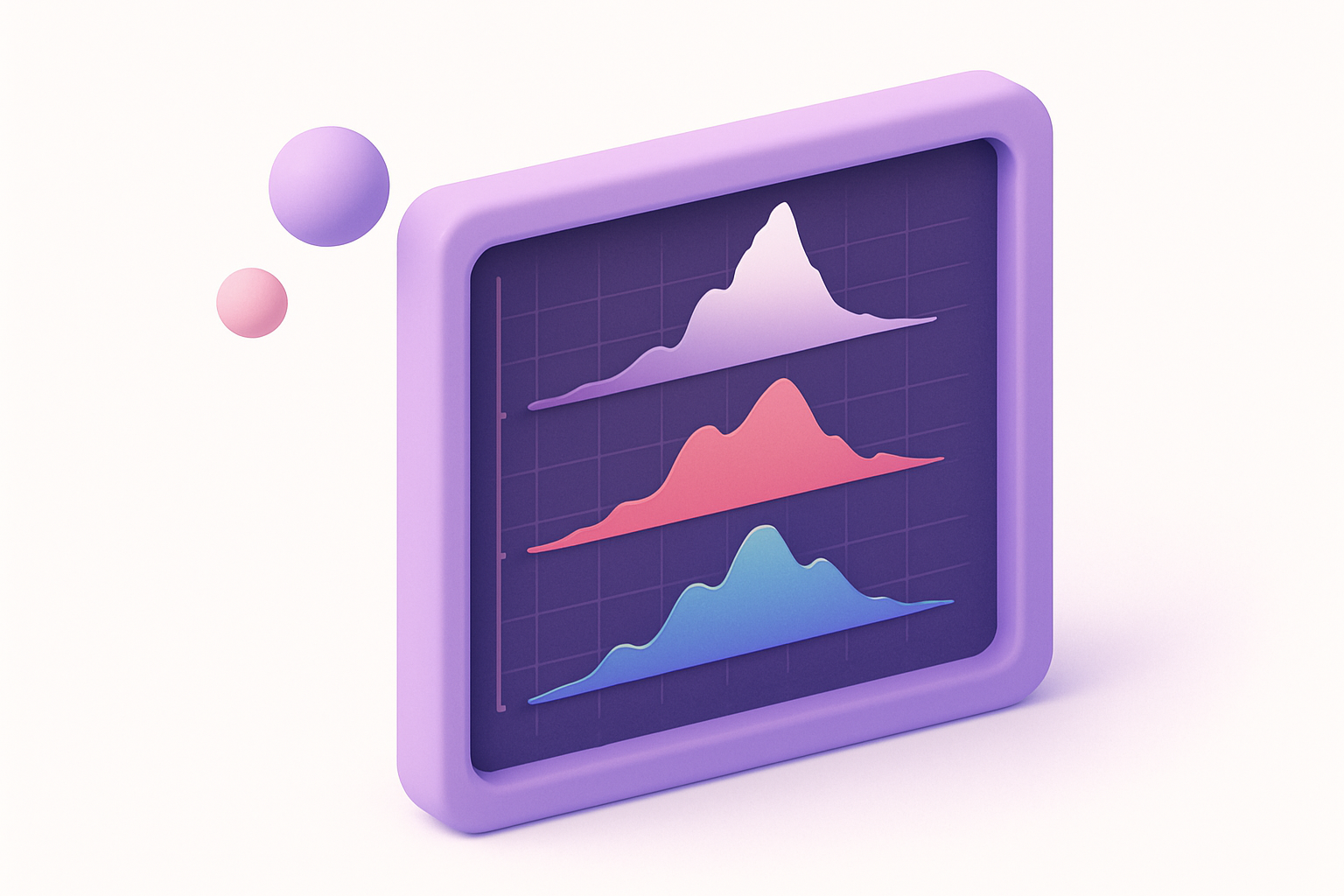
Image Histogram
Visualize the color distribution of an image with RGB and luminance histograms.
Image Tools
Image Color Picker
Click anywhere on an image to pick the exact color value in HEX, RGB, and HSL.
Image Tools
Image Blend Modes
Apply Photoshop-style blend modes between two images: multiply, screen, overlay, and more.
Image Tools
Image Resizer
Resize images by exact pixel dimensions or percentage while maintaining aspect ratio.
Image Tools
Image Crop
Crop images with a visual selection rectangle to remove unwanted areas.
Image ToolsFrequently Asked Questions
QGrayscale channels?
QAlpha channel?
QAll formats?
QRecombine?
QOutput format?
About Image Channel Splitter
Image Channel Splitter is a free online tool from FreeToolkit.ai. All processing happens directly in your browser — your data never leaves your device. No registration required. No ads. Just fast, reliable tools.